Browse topics
Creating Your First Team
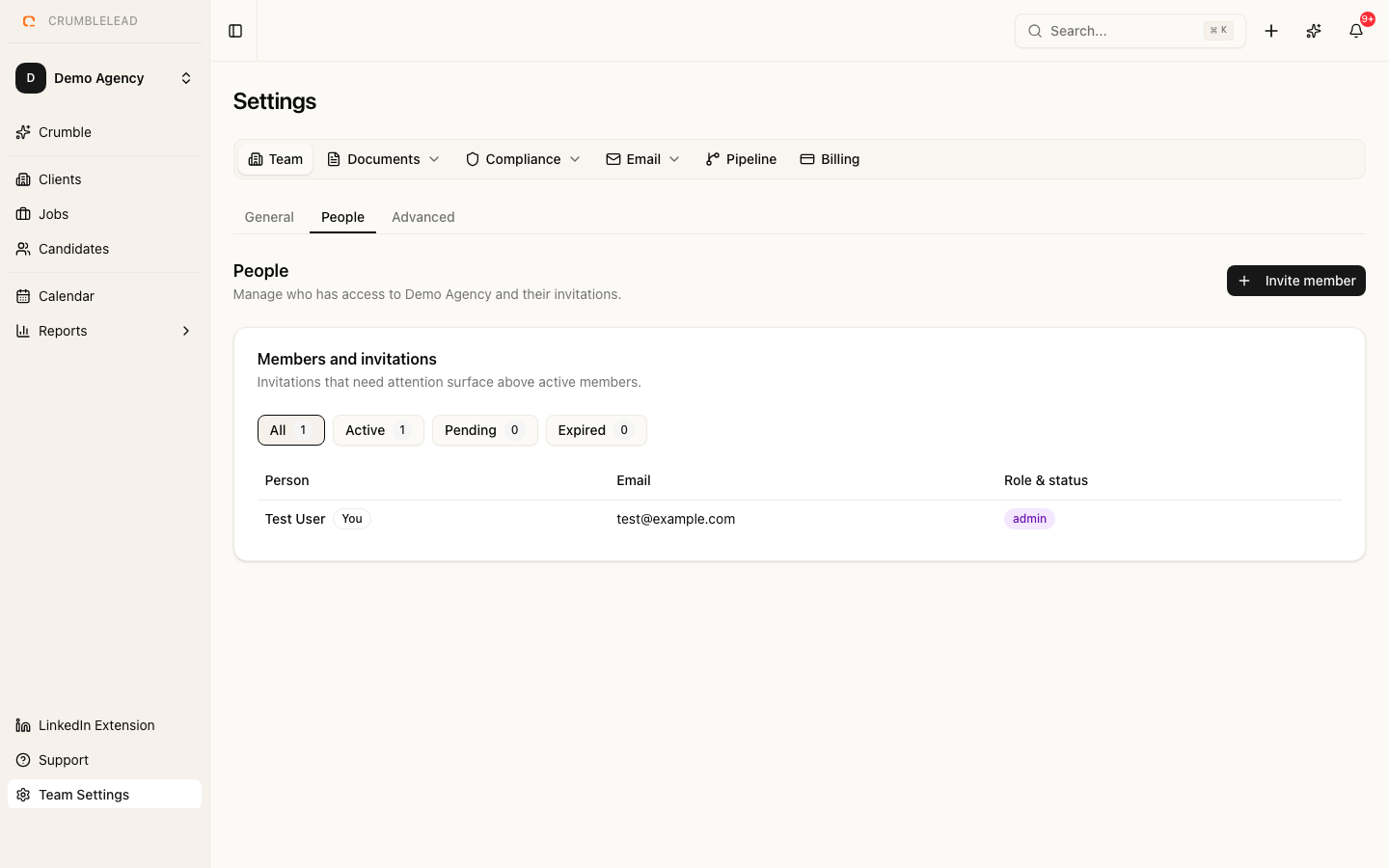
Your team is created automatically
When you sign up for Crumblelead, a team is created for you automatically using your name. This is your workspace where all candidates, clients, jobs, and placements live.
Inviting team members
To invite colleagues to your team, go to Settings > Team Members and click Invite Member. Enter their email address and select a role:
- Admin - Full access, including team settings, billing, and managing people
- Manager - Full access to all jobs, candidates, and clients, including confidential ones, plus placements and team reports. No team settings or billing
- Consultant - Day-to-day recruiting on their own jobs, candidates, and clients. No confidential records or settings
See Team Roles and Permissions for exactly what each role can do.
The invited person will receive an email with a link to join your team. If they already have a Crumblelead account, they will be added to your team automatically. Otherwise, they will need to create an account first.
Switching between teams
If you belong to multiple teams, click on your team name in the sidebar to switch between them. Your active team determines which data you see throughout the application.