Browse topics
Jobs & Pipelines
Creating and Managing Job Listings
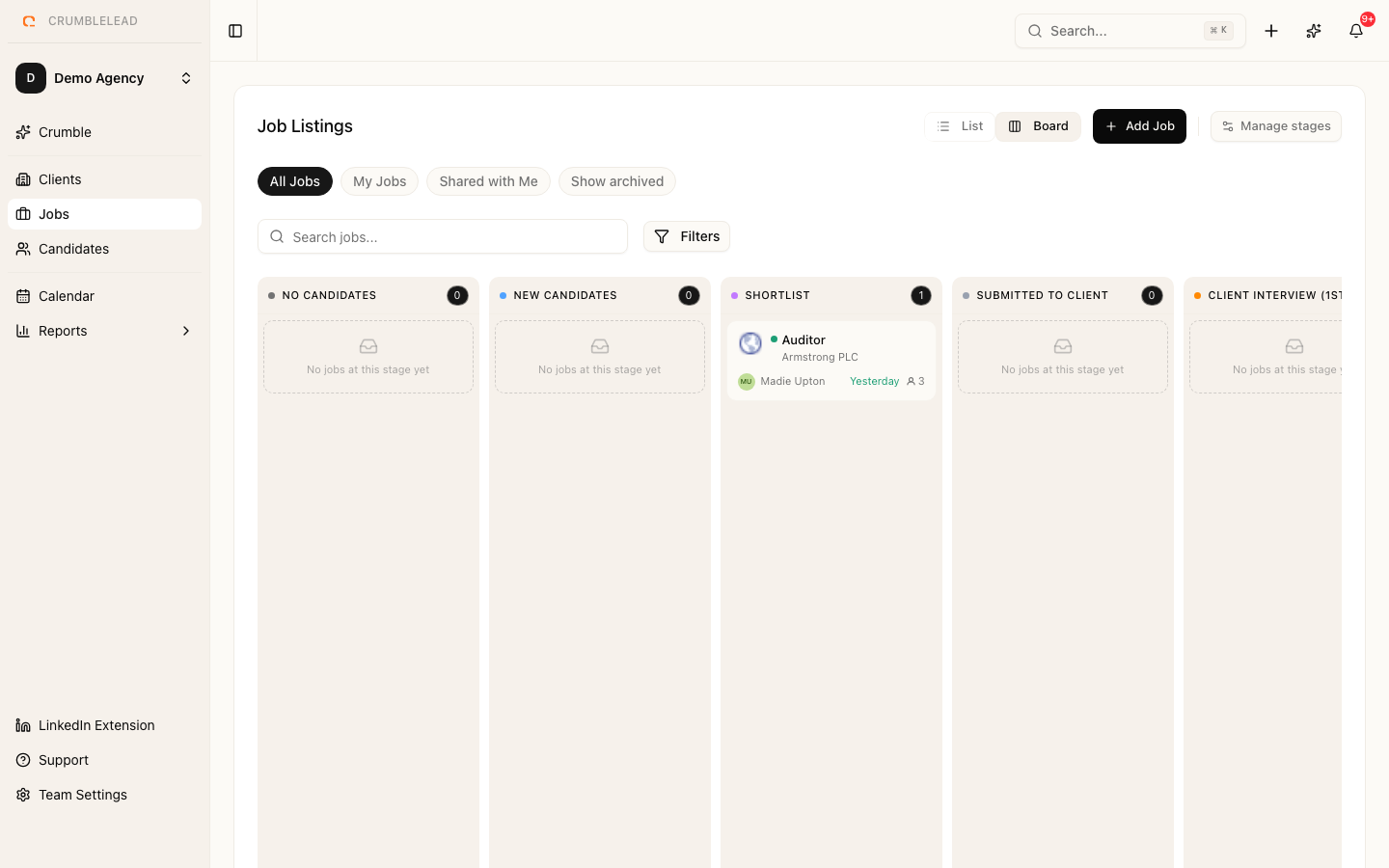
Creating a job
Go to Jobs in the sidebar and create a new job. The main details are:
- Title and client
- Description and requirements, which AI matching reads when it looks for candidates
- Recruiter briefing, your notes from the intake call, which make the deeper AI check on a candidate more specific
- Job type: full-time, part-time, contract or temporary
- Location and work mode
- Salary range, with its currency and period
- Estimated fee or fee percentage, and a closing probability, which feed your revenue forecast
Job statuses
A job moves through these statuses:
- Sourcing - Looking for candidates
- Screening - Reviewing candidates
- Interviewing - Candidates are with the client
- Offer - An offer is out
- Filled - The role has been filled
- Cancelled - The role is no longer needed
You can also put a job on hold, mark it confidential so only the people working on it can see it, or archive it when it is finished.
Pipeline stages
Every job uses your workspace's pipeline stages. New workspaces start with New Candidates, Shortlist, Submitted to Client, Client Interview (1st), Client Interview (2nd++), Offer, Hired and Started. An admin can rename, add, remove and reorder them in Settings > Pipeline stages. See Set up pipeline stages for an agency.