Browse topics
Managing Candidates
Adding and Importing Candidates
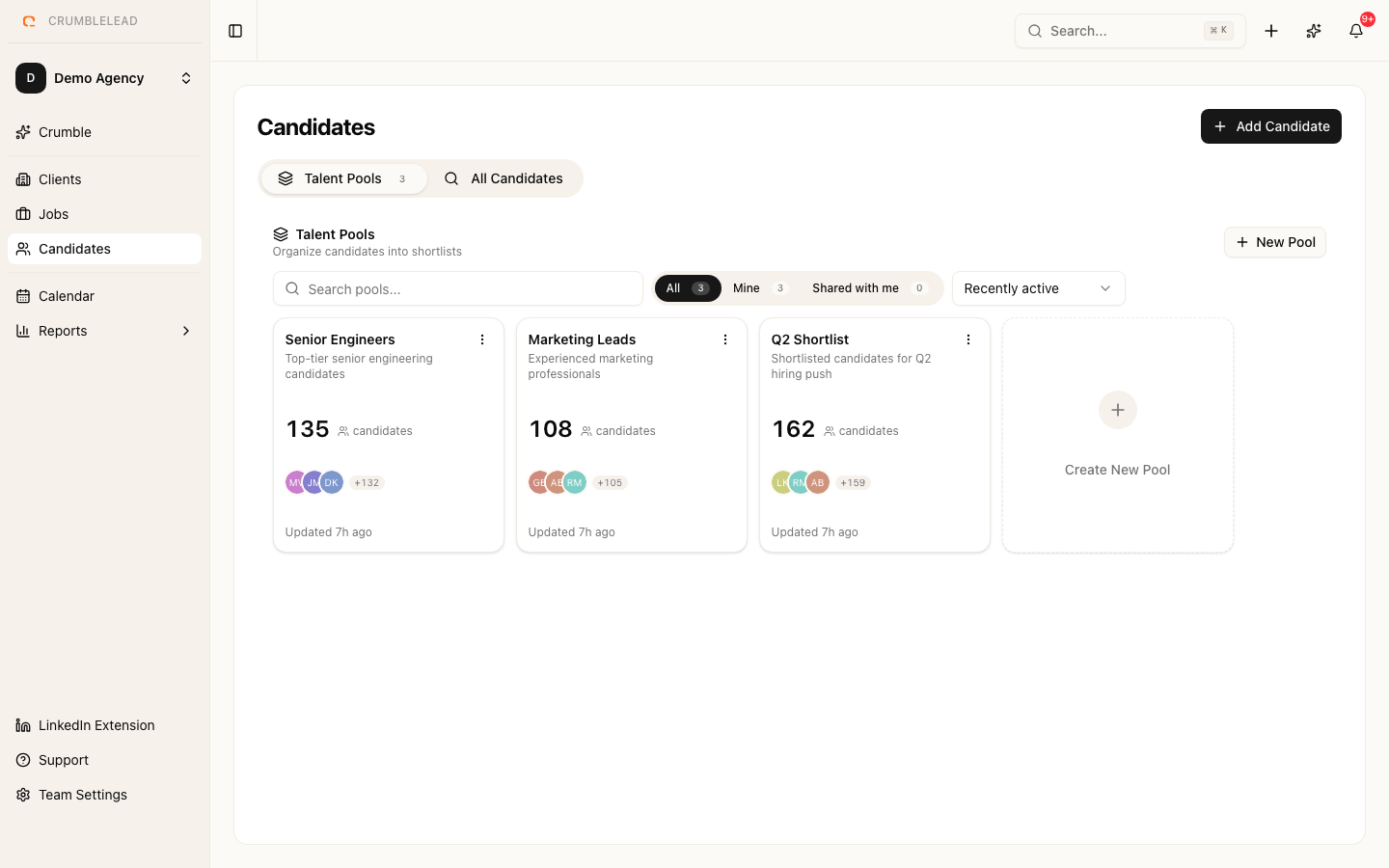
Adding a candidate manually
Click Candidates in the sidebar, then click Add Candidate. Fill in the candidate's details:
- First name and Last name (required)
- Email (required, must be unique within your team)
- Phone, Location, and LinkedIn URL (optional)
- Skills - Add relevant skills as tags
- Resume - Upload a PDF or Word document
Click Save to create the candidate record.
Resume parsing
When you upload a resume, Crumblelead automatically extracts key information like skills, experience, and education. This data is stored alongside the candidate record and used for matching and search.
Candidate statuses
Each candidate has a status that tracks where they are in their overall journey:
- Active - Available and being considered for roles. New candidates start as Active.
- Inactive - Not looking right now, or not someone you are working with at the moment
- Hired - Placed in a role
You can change a candidate's status at any time when you edit their profile.
Uploading CVs? Read what CV parsing is and how accurate it is to see how Crumblelead reads a CV and what to check.